
IT International Academy - Computer Studies
IT International Academy
💻 Empowering Future Tech Professionals

Computer Studies Program

Learning the Life of a Computer — From Zero to Confident User
🔒 MODULE 7.0

Digital Safety

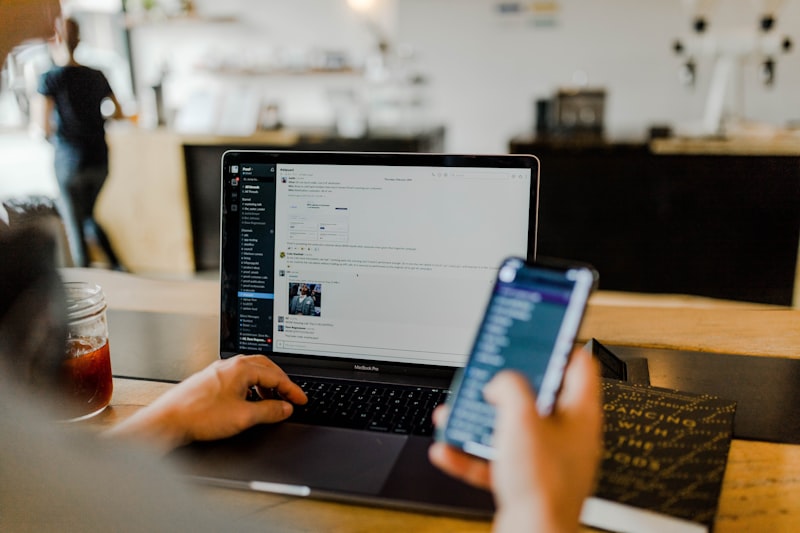
Person protecting their digital life with strong security

You now produce real work, communicate professionally, and move confidently across the internet. All of that deserves to be protected — because the same connectivity that makes modern life so powerful also opens the door to real risks: stolen passwords, scams, malware, and privacy exposure.

This module is not about fear. It's about building the same kind of quiet, everyday awareness a careful driver has on the road — not paralyzed by anxiety, but alert enough to avoid the vast majority of trouble before it ever starts. In 2026, with scams growing more sophisticated and even AI-assisted, these habits matter more than ever.

By the end of this module, you will manage passwords properly, recognize phishing and malware, protect your privacy, understand two-factor authentication, and know exactly how to respond if something does go wrong.

🔒 SECTION 7.1

Passwords & Account Security

Secure password entry on a laptop

Your password is often the only thing standing between your entire digital life and a stranger — your email, your bank, your photos, your work. Yet most people still treat password creation as an afterthought. This section changes that permanently.

7.1.1 — What Makes a Password Actually Strong

Strong password being created

Length matters more than complexity. A password like "correcthorsebatterystaple" — long, but made of ordinary words — is genuinely harder for automated attacks to crack than a short, complex-looking one like "P@ss1!", because length increases the number of possible combinations exponentially.

A strong password today should be at least 12 characters, mixing unrelated words, numbers, and symbols unpredictably. Never use personal information — birthdays, pet names, your own name — since these are often the very first guesses in a targeted attack.

7.1.2 — Never Reuse Passwords Across Accounts

Multiple different account passwords

Here's the danger most people never consider: if you reuse the same password across multiple sites, and just one of those sites is ever breached, attackers immediately try that same password on your email, your bank, and every other account you own — a technique called "credential stuffing."

A single reused password can turn one small, distant data breach into a complete personal catastrophe — which is exactly why unique passwords for every account are non-negotiable.

7.1.3 — Using a Password Manager

Password manager application

No human being can realistically remember dozens of unique, complex passwords — and a password manager solves this completely. It generates and securely stores a strong, unique password for every account, unlocked by one single master password you actually memorize.

Built-in options like Google Password Manager or Apple's iCloud Keychain are free and already available to most people without installing anything extra — a genuinely accessible starting point for anyone ready to stop reusing passwords today.

7.1.4 — Recognizing When an Account Has Been Compromised

Suspicious account activity alert

Warning signs to watch for: login alerts from unfamiliar locations, password reset emails you never requested, messages sent from your account that you didn't write, or being suddenly logged out of an account without explanation.

If you notice any of these, change that account's password immediately, check its recent login activity (most major services show this under account settings), and enable two-factor authentication if it isn't already active — a topic covered in full in Section 7.2.

💡 Practical Task: Check whether you're reusing the same password across more than one important account. Choose one account and create a brand-new, unique 12+ character password for it using a mix of unrelated words, numbers, and symbols.

🔒 SECTION 7.2

Two-Factor Authentication in Practice

Two-factor authentication code on a phone

A strong password is essential, but it's still just one lock on the door. Two-factor authentication — often shortened to 2FA — adds a second, completely different lock, so that even if someone steals your password, they still can't get in without also having something only you possess: your phone.

7.2.1 — How Two-Factor Authentication Actually Works

Phone showing a verification code

The core idea is simple: logging in now requires two separate pieces of proof — something you know (your password) and something you have (your phone, or a small physical key). Even if a criminal somehow obtains your password through a data breach or phishing attempt, they still cannot access your account without that second piece.

This single feature is, according to major technology companies' own security research, one of the most effective defenses against account takeover that exists today — far more effective than any password alone, no matter how complex.

7.2.2 — Setting Up 2FA Step by Step

Setting up two-factor authentication

Go into your account's Security Settings (found in Google, Microsoft, or most major platforms under "Account" or "Security & Privacy"), and look for "Two-Factor Authentication" or "2-Step Verification." Click to turn it on, and you'll typically be asked to choose your second method: a text message code, an authenticator app, or a physical security key.

Once enabled, every future login from an unrecognized device will prompt you for that second code, in addition to your password — a small extra step that provides enormous protection in return.

7.2.3 — SMS Codes vs. Authenticator Apps

Authenticator app on a smartphone

Text message (SMS) codes are the simplest option — a code arrives by text each time you log in from a new device. They're better than no 2FA at all, but carry a known weakness: a sophisticated attacker can sometimes intercept SMS messages through a technique called "SIM swapping."

Authenticator apps — like Google Authenticator or Microsoft Authenticator — generate a new code directly on your phone every 30 seconds, without needing any network signal at all, making them noticeably more secure than SMS. For any account holding genuinely sensitive information — your primary email or banking — an authenticator app is the stronger, recommended choice.

7.2.4 — Backup Codes: Your Safety Net

Backup codes for account recovery

When you set up 2FA, most services offer a set of one-time backup codes — a short list of codes you can use to log in if you ever lose access to your phone. Save these somewhere safe and separate from your phone itself — written down in a secure location, or stored in your password manager — not as a photo on the same phone that might be lost alongside them.

Skipping this step is a common regret — losing a phone without backup codes saved can mean a genuinely stressful, lengthy account recovery process with the platform's support team.

💡 Practical Task: Enable two-factor authentication on your primary email account right now. Choose an authenticator app if available, and save your backup codes somewhere safe and separate from your phone.

🔒 SECTION 7.3

Recognizing Phishing & Malware

Warning sign for phishing and malware threats

Most digital harm doesn't come from some brilliant, invisible hacking technique — it comes from someone being tricked into clicking, downloading, or typing something they shouldn't have. This section builds the exact instincts that make that trick fail, every single time it's attempted against you.

7.3.1 — What Phishing Actually Is

Phishing email example

Phishing is a message — usually an email, sometimes a text or social media message — designed to impersonate a trusted source (a bank, a company, even a coworker) in order to trick you into revealing a password, clicking a malicious link, or sending money.

The word itself comes from "fishing" — the attacker casts out a wide net of deceptive messages, knowing that even a small percentage of people falling for it makes the attempt worthwhile. You don't need to be careless to fall for one — well-crafted phishing attempts can genuinely fool careful, intelligent people, which is exactly why recognizing the patterns matters more than relying on instinct alone.

7.3.2 — The Warning Signs of a Phishing Attempt

Suspicious email warning signs

Urgency and fear are the most common tools — "Your account will be suspended in 24 hours," "Suspicious activity detected, verify now." Mismatched or slightly-off sender addresses are another telltale sign — a message claiming to be from your bank, but sent from an address that doesn't quite match the real one.

Generic greetings ("Dear Customer" instead of your actual name) often signal a mass-sent scam rather than a genuine, personalized message from a company that actually knows you. And requests for information no legitimate company would ever ask for by email — full passwords, PINs, one-time verification codes — should immediately raise suspicion, no exceptions.

7.3.3 — What Malware Is and How It Spreads

Malware warning on a computer screen

Malware — short for "malicious software" — is any program designed to damage, spy on, or take control of a device without permission. It commonly spreads through infected email attachments, fake software downloads, and malicious links disguised as something legitimate.

A few common categories worth knowing: viruses attach themselves to files and spread when those files are shared; spyware secretly monitors activity, often stealing passwords; ransomware locks or encrypts your files, demanding payment to release them — one of the most damaging and increasingly common forms of malware affecting individuals and businesses alike.

7.3.4 — Protecting Yourself: Antivirus and Safe Habits

Antivirus software protecting a computer

Windows Defender, built into every modern Windows computer, is genuinely sufficient protection for most users — the key is confirming it's actually switched on and kept updated, found under Settings → Privacy & Security → Windows Security.

Beyond software, your own habits are the single strongest layer of defense: never open unexpected attachments, never click links in messages that create urgency, hover over a link (without clicking) to preview its actual destination before trusting it, and only download software from official sources, as covered in Section 3.3.

7.3.5 — What to Do If You Think You've Been Infected

Removing malware from an infected computer

Act quickly and calmly. Disconnect the device from the internet immediately (turn off Wi-Fi) to stop malware from spreading further or sending stolen data out. Run a full scan using your antivirus software.

Change passwords for important accounts from a different, clean device, not the infected one. If the situation seems serious or the antivirus scan can't resolve it, seek help from a trusted technician rather than attempting risky manual fixes yourself.

💡 Practical Task: Confirm that antivirus protection is active on your assigned computer. Find one real or example phishing email online (search "phishing email example") and identify at least three warning signs from this section present in it.

🔒 SECTION 7.4

Privacy Basics in a Connected World

Digital privacy and data protection concept

Every account you create, every app you install, every website you visit collects some information about you. Privacy isn't about hiding — it's about making informed, deliberate choices about what you share, with whom, and why. This section builds exactly that kind of quiet, confident control over your own digital footprint.

7.4.1 — Understanding Your Digital Footprint

Digital footprint across devices

Your digital footprint is the trail of information you leave behind through every online action — posts, searches, purchases, location data, even how long you linger on a webpage. Some of this is unavoidable and harmless; some of it is worth actively managing.

A useful exercise: search your own name online occasionally, to see exactly what's publicly visible about you — a practical, empowering habit rather than a paranoid one, since it puts you back in control of information you may have forgotten was ever public.

7.4.2 — Reviewing App and Website Permissions

App permissions settings on a phone

Apps often request access to far more than they actually need — location, contacts, microphone, camera — sometimes buried in a permissions screen most people accept without reading. A simple flashlight app requesting access to your contacts and microphone should raise an immediate question: why does it need that at all?

Reviewing these periodically — under Settings → Privacy on most phones and computers — and revoking permissions that don't make sense for what the app actually does is a quick, genuinely protective habit worth building into a routine, perhaps every few months.

7.4.3 — Social Media Privacy Settings

Social media privacy settings

Every major social media platform includes privacy settings controlling who can see your posts, contact you, or find your profile through a search. Take ten minutes, once, to actually review these — most people never do, leaving default settings that are often more open than they realize.

A few worth checking specifically: who can see your posts (public, friends only, custom), who can send you friend or follow requests, and whether your location is being shared automatically with posts — a detail many people don't realize is happening by default on certain platforms.

7.4.4 — Sharing Information Wisely

Careful sharing of personal information online

A useful pause before posting or filling in any online form: would you be comfortable with a stranger, an employer, or a scammer seeing this exact piece of information? Full birthdates, home addresses, and real-time location are particularly worth being cautious about sharing publicly.

This isn't about becoming secretive or withdrawn online — it's about being the one making the deliberate choice of what to share, rather than defaulting to whatever a platform's settings happen to allow.

7.4.5 — Understanding Data Collection by AI Tools

AI tool interface on a laptop

As AI tools become part of everyday computing — a topic explored fully in Module 8 — a new privacy consideration has emerged: what happens to information you type into an AI chat assistant.

A sensible default habit: avoid pasting highly sensitive personal information — passwords, full financial details, confidential work documents — into any AI tool unless you've specifically confirmed how that platform handles and stores your data. This same cautious instinct that protects you elsewhere online applies just as directly here.

💡 Practical Task: Open the privacy settings on one social media account you use, and review who can see your posts and profile information. Adjust at least one setting you weren't previously aware of.

🔒 SECTION 7.5

Responsible Digital Etiquette & Multi-Device Security

Person managing accounts securely across multiple devices

Digital safety isn't only about defending against outside threats — it's also about how you conduct yourself online, and how carefully you manage your own presence across the growing number of devices most people now use daily. This closing section of Module 7 brings both of those together.

7.5.1 — Digital Etiquette: How You Show Up Online

Respectful online communication

Everything you post, comment, or send online carries the same weight as something said in person — often more, because it's written down, searchable, and far easier to share widely than a spoken comment ever was. A simple, effective standard: if you wouldn't say it to someone's face, reconsider typing it at all.

This applies just as much professionally — the tone in a work Slack message, a comment on a colleague's post, or a group chat reply all quietly shape how others perceive your professionalism, sometimes long-term.

7.5.2 — Managing the Same Account Across Multiple Devices

Same account synced across phone laptop and tablet

Most people today move between a phone, a laptop, and sometimes a tablet — all signed into the same Google or Microsoft account, keeping files, contacts, and settings in sync automatically. This convenience comes with a responsibility: every one of those devices is now a potential entry point into your entire digital life.

A simple, valuable habit: periodically check which devices are signed into your main accounts, under Settings → Security → "Devices" or "Where You're Signed In." If an unfamiliar device appears, sign it out remotely and change your password immediately.

7.5.3 — Signing Out of Shared and Public Computers

Signing out from a shared public computer

Using a library, internet cafe, or shared work computer requires extra care. Always fully sign out of every account — email, social media, banking — before walking away, rather than simply closing the browser window, which can sometimes leave a session active for the next person to access.

Many browsers also offer a "sign out of all devices" option within account security settings — a useful safety net if you're ever unsure whether you fully logged out somewhere.

7.5.4 — Building a Personal Digital Safety Routine

Person reviewing their digital safety checklist

Everything in this module works best as an ongoing habit, not a one-time fix. Set a recurring reminder — perhaps every three months — to review your account security together: check for reused passwords, confirm 2FA is active on important accounts, review connected devices, and check app permissions.

This quiet, routine maintenance is exactly what separates someone who occasionally worries about digital safety from someone who has genuinely, permanently built it into how they use technology.

💡 Practical Task: Check "Where You're Signed In" or "Devices" under the security settings of your primary email account. Remove any device you don't recognize or no longer use.

🏆
Module 7 Complete
Digital Safety

You can now manage passwords, spot phishing and malware, protect your privacy, and secure your accounts across every device with real confidence. Onward to Module 8: Computers & AI in Everyday Life.